Vaultwarden: find and merge duplicate entries
How to clean up duplicate logins on a self-hosted Vaultwarden or Bitwarden server with BitMerger, including organizations and collections.
Updated on October 14, 2026
Self-hosted vaults collect duplicates just like bitwarden.com: imports from other password managers, the browser extension saving a login a second time, family or team members sharing the same account in an organization. Vaultwarden has no merge function either. BitMerger works with your own server the same way it works with Bitwarden's cloud.
Why BitMerger works with Vaultwarden
BitMerger does not talk to your server directly. It uses the official Bitwarden CLI, the same command line client Bitwarden publishes for its own servers, and the CLI speaks the Bitwarden API that Vaultwarden implements. Your server sees a normal Bitwarden client.
Nothing has to be installed on the server, and BitMerger needs no admin access. It only sees what your account sees: your personal vault plus the organizations and collections you are a member of.
Log in to your own server
- Start BitMerger. The interface opens in your browser.
- Under Server, choose Self-hosted (Vaultwarden, Bitwarden server).
- Enter your server URL, the address you also use for the web vault, e.g.
vault.example.org. - Log in with email and master password, or with your personal API key.
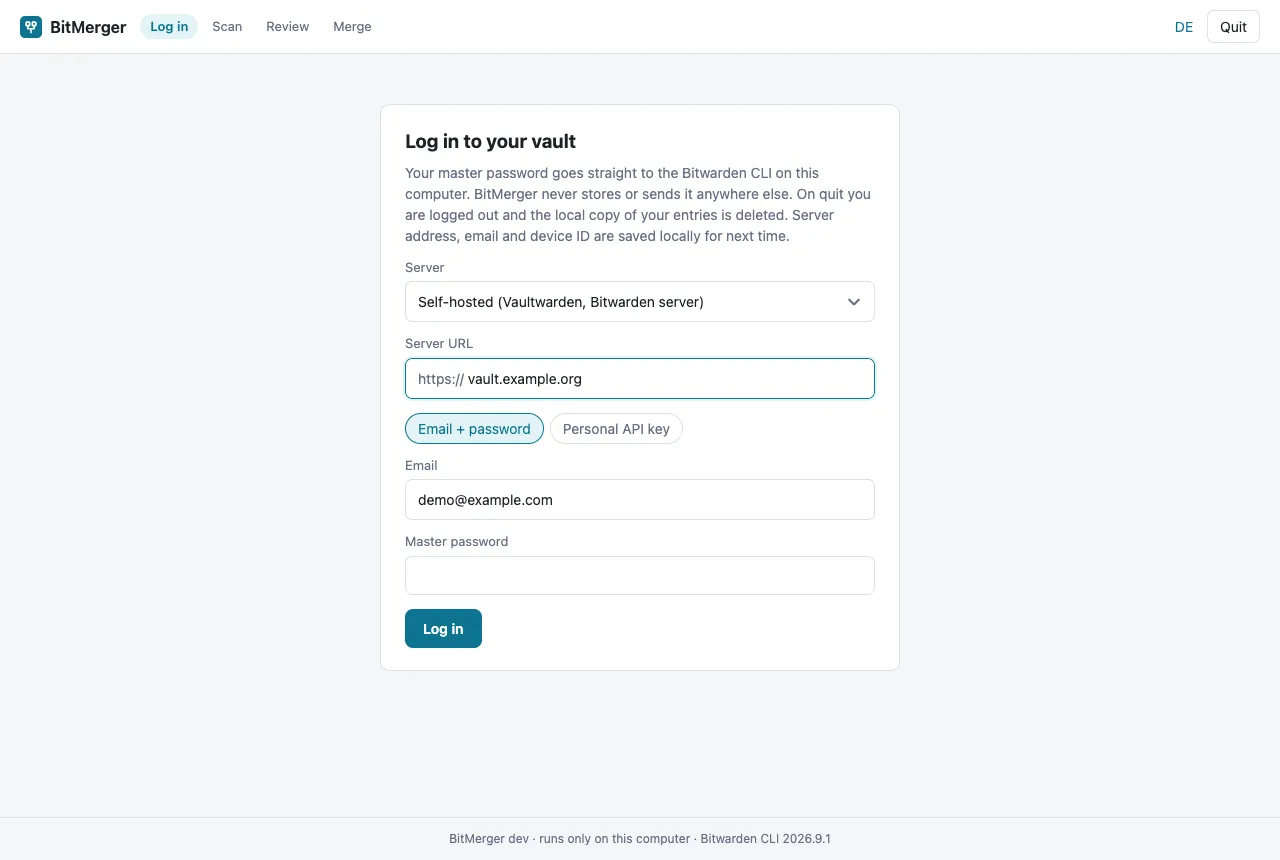
BitMerger keeps the server URL, your email (or API client ID) and the CLI's device ID for next time. That way the form is filled in and your server does not register a new device on every start. Master password, API secret and two-step codes are never stored.
Organizations and collections
On a family or team server, duplicates often sit in different places: one copy in your personal vault, one in the family organization. BitMerger searches all of them and shows where each entry lives (personal vault or organization, folder and collections).
- Groups within one organization are merged normally, and collections are combined.
- Groups that span several organizations are never merged automatically. Untick entries until only one organization is left; otherwise the group is skipped.
Your account needs permission to edit the entries in an organization. BitMerger cannot change more than you can change in the web vault.
Recommended order on your own server
- Export your vault (and organization vaults you manage).
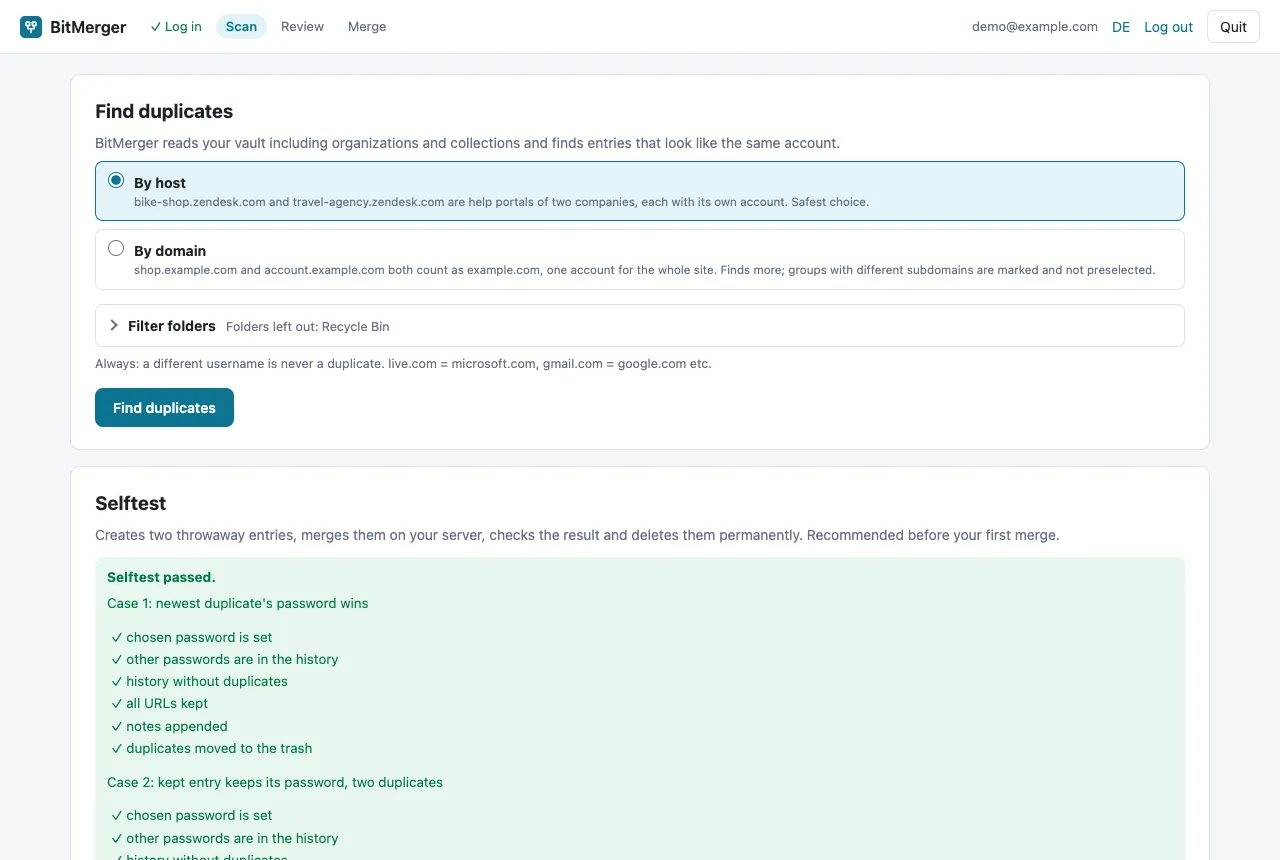
- Run the selftest. It creates two throwaway entries on your server, merges them, checks the result and deletes them. This tells you that merging works with your server version before you touch real entries.
- Scan by host first. It is the safe setting. Switch to by domain later if you want to catch
shop.example.comandaccount.example.comas one site. - Review, dry run, merge. The dry run checks the plan against the current vault on your server and shows every change.
While merging
Don't edit the vault in other Bitwarden apps while the merge runs. Duplicates are moved to the trash of your server and can be restored there for 30 days, as long as your server keeps deleted items.
Troubleshooting
- Login fails: check the server URL in the web vault's address bar and whether your server allows the login method you chose.
- A group is skipped: it spans several organizations, or the old passwords would not fit into the password history (Bitwarden keeps at most five).
- Something else: please open an issue on GitHub. BitMerger is open source, you can also read exactly what it does in the source code.