How to merge duplicate entries in Bitwarden, step by step
Bitwarden has no merge function. This guide shows how to find duplicate logins and merge them with BitMerger without losing URLs, notes, TOTP or old passwords.
Updated on October 14, 2026
After a few years with Bitwarden, the same login often exists three or four times: once from an old import, once saved by the browser extension, once in a shared organization. Bitwarden can delete entries, but it cannot merge them. If you delete the duplicates by hand, you lose whatever only that entry had: a second URL, a note, a TOTP key or an older password.
BitMerger does the merge for you. It runs on your computer, talks to your vault through the official Bitwarden CLI and shows every group of duplicates as a card that you review before anything changes.
Before you start
- Keep an export of your vault. Duplicates go to the Bitwarden trash and can be restored for 30 days, but an export is the safest fallback before any larger clean-up.
- Don't edit the vault elsewhere while merging. Close other Bitwarden apps or at least don't change entries in them until BitMerger is done.
- Use your own computer. While BitMerger runs, other programs on the same computer could talk to the local Bitwarden CLI, just like with an unlocked
bwsession.
1. Download and start BitMerger
Download the file for your system from the download section. It is a single file, there is nothing to install. The files are not code-signed yet, so macOS and Windows ask once whether you want to open it.
A small terminal window stays open while BitMerger runs, and your browser opens the interface. On first start BitMerger downloads the official Bitwarden CLI (about 45 MB) from Bitwarden's GitHub releases and checks it against a pinned SHA-256 checksum.
2. Log in to your vault
Choose your server: bitwarden.com (US), bitwarden.eu (EU) or Self-hosted for Vaultwarden and your own Bitwarden server. Then log in with email and master password, or with your personal API key.
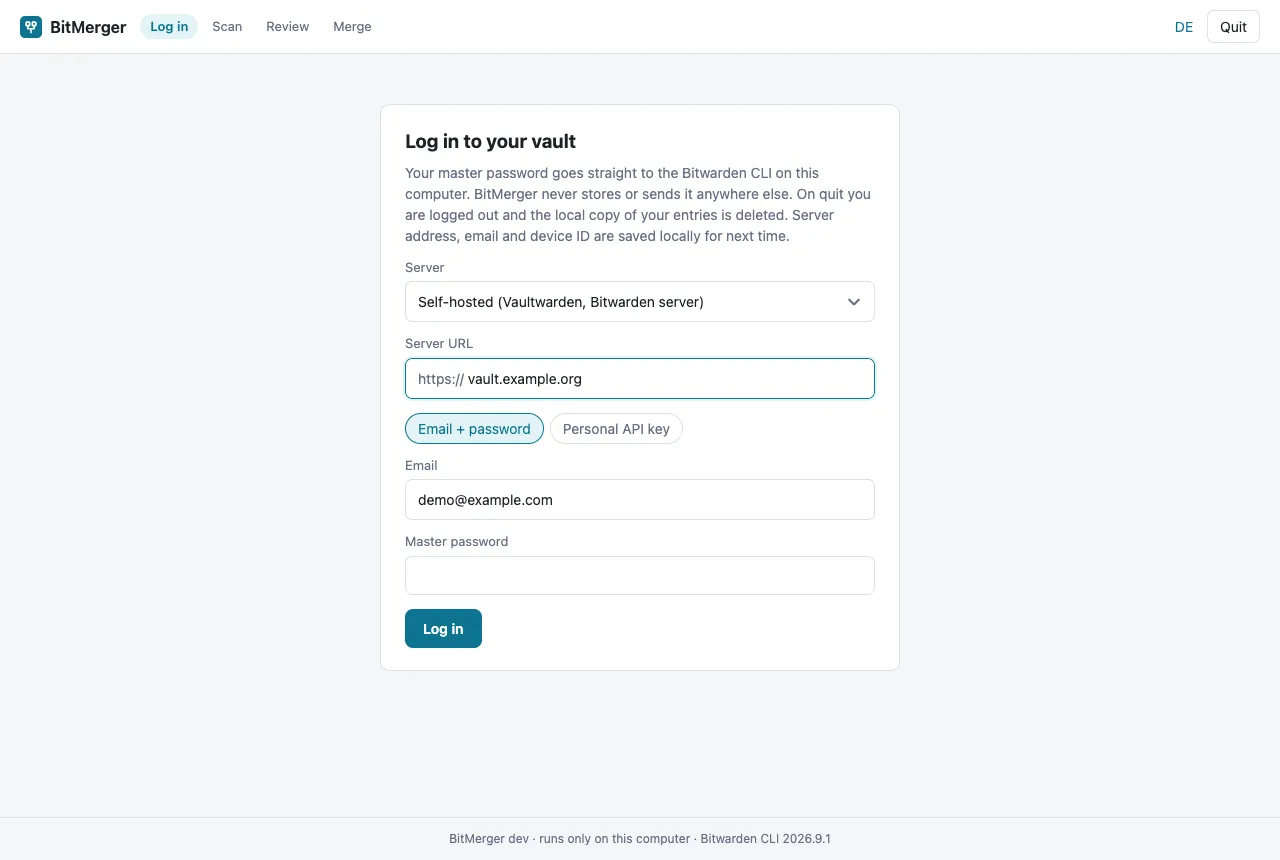
- Two-step login works: choose the method and enter the code. For email codes, choose Email and press Log in without a code, Bitwarden then sends you one.
- Personal API key is recommended for bitwarden.com because it avoids new-device emails. You find it in the web vault under Settings → Security → Keys.
Your master password goes straight to the Bitwarden CLI. BitMerger never stores it and never sends it anywhere else.
3. Run the selftest once
Before your first merge, start the selftest on the scan page. It creates two throwaway entries on your server, merges them, checks the result (chosen password set, other passwords in the history, all URLs kept, notes appended, duplicates in the trash) and then deletes them permanently.
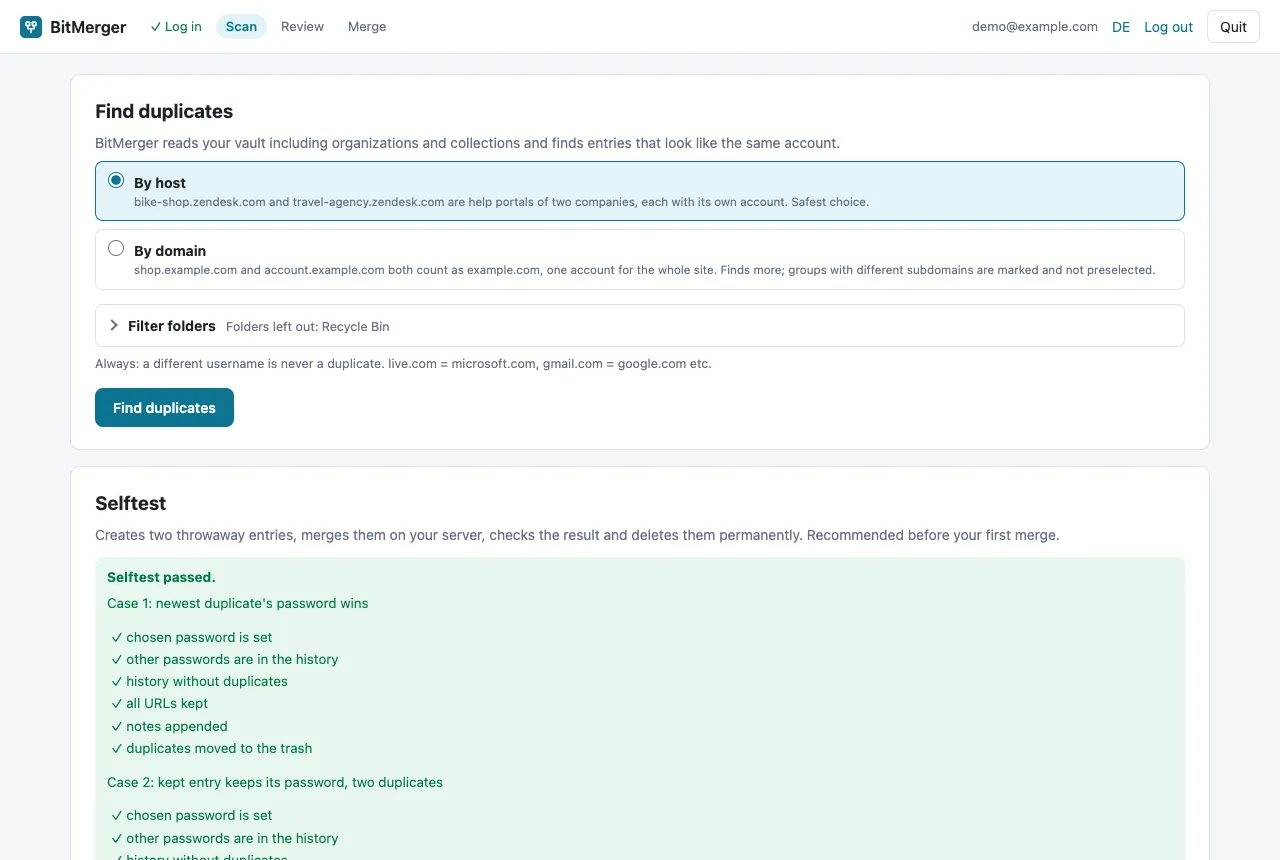
If the selftest fails, don't merge. Please open an issue on GitHub with the message.
4. Choose how duplicates are found
BitMerger reads your vault including organizations and collections. Two settings decide which entries count as the same account:
- By host keeps
bike-shop.zendesk.comandtravel-agency.zendesk.comapart: help portals of two companies, two accounts. This is the safe choice. - By domain also groups
shop.example.comandaccount.example.comasexample.com. It finds more, but groups with different subdomains are marked and not preselected.
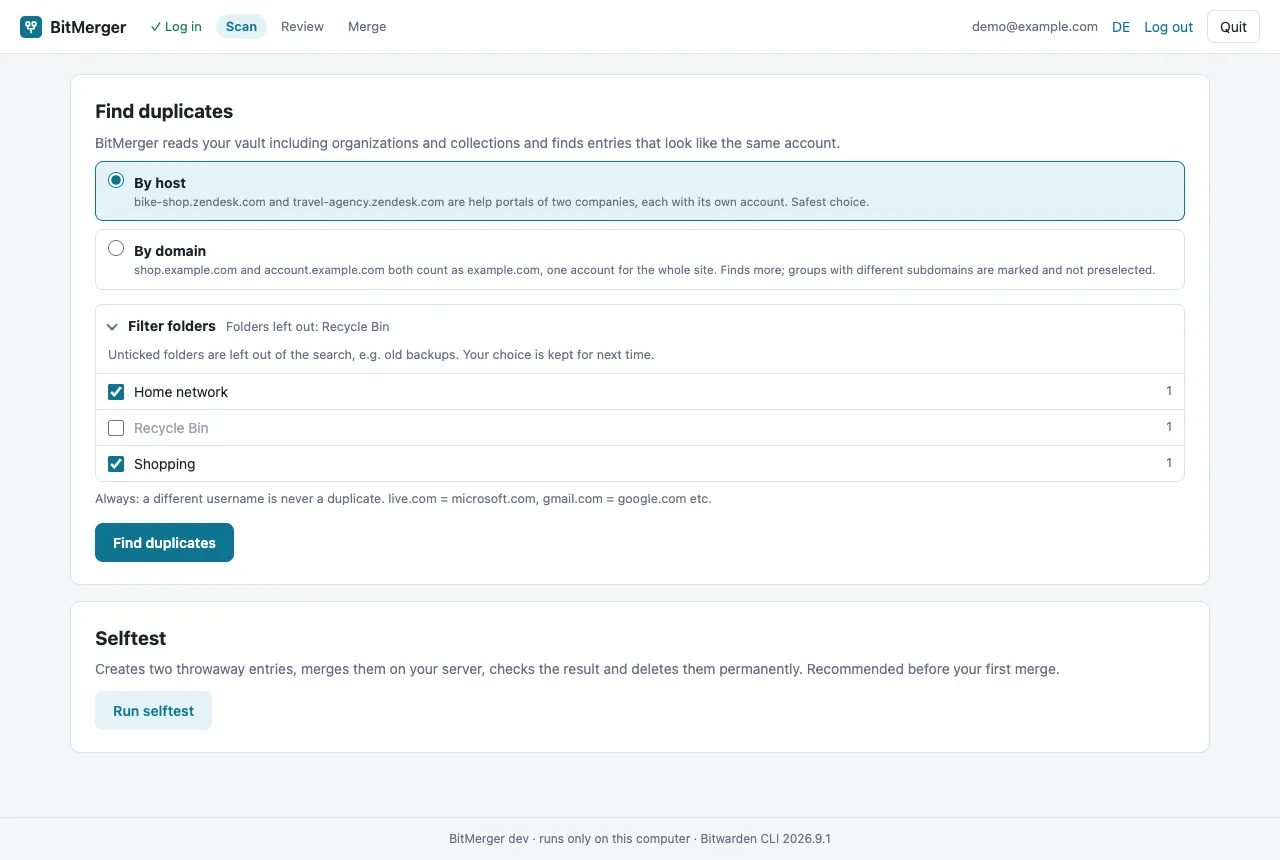
Under Filter folders you can leave out folders such as old backups. Recycle bin folders brought along by imports, like the "Recycle Bin" from KeePass, are left out by default.
A different username is never a duplicate. Common equivalent domains count as one site, for example live.com and microsoft.com or gmail.com and google.com.
5. Review every group
Every group is a card. For each card you decide:
- Which entries take part. Unticked entries stay untouched.
- Which entry stays (target). Everything is merged into it: URLs, notes, custom fields and attachments of the others. It keeps its folder, its passkey and, unless you enter a new one, its name.
- Which password stays. All other passwords go into the password history. The same letter means the same password, the letters say nothing about age.
- A new name, if you like.
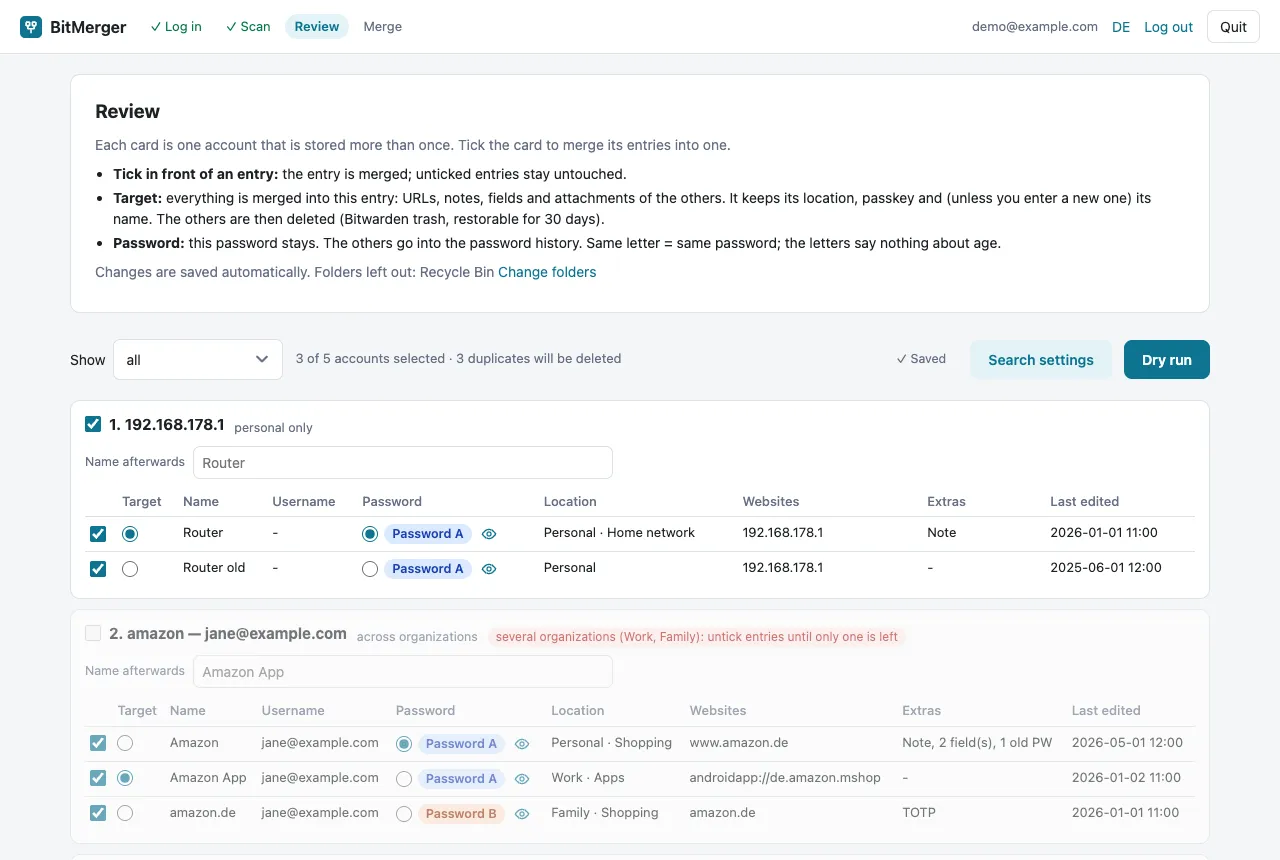
Changes are saved automatically. Groups that span several organizations are marked and skipped until you untick entries so that only one organization is left. Entries without URL that only share name and username are shown as a weaker match and never preselected.
6. Check the dry run
The dry run checks your plan against the current vault and shows exactly what will happen per account: which entry is kept, what it takes over (URLs, password history, notes, fields, attachments) and which entries go to the trash.
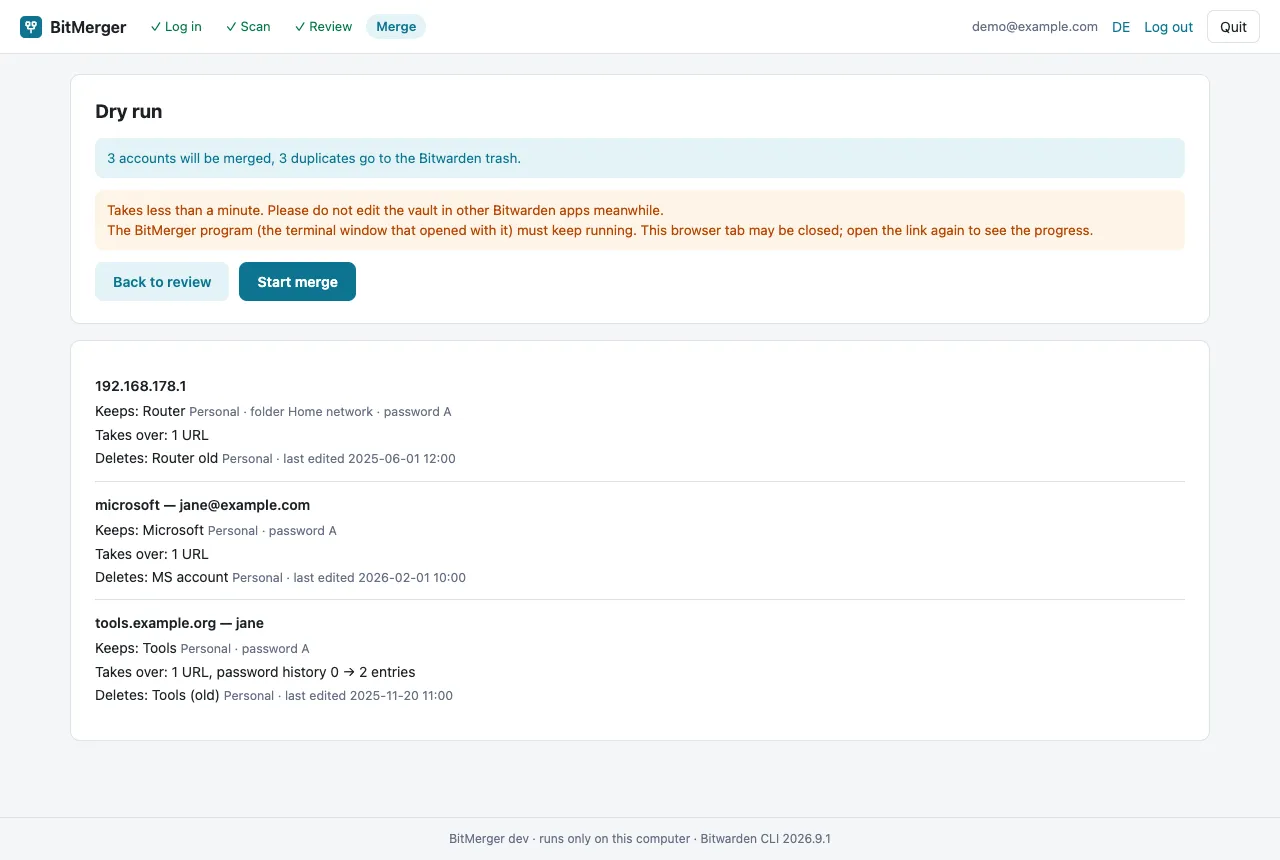
Bitwarden keeps at most five old passwords. If the current passwords of a group would not fit into the history, the group is skipped instead of losing a password.
7. Merge
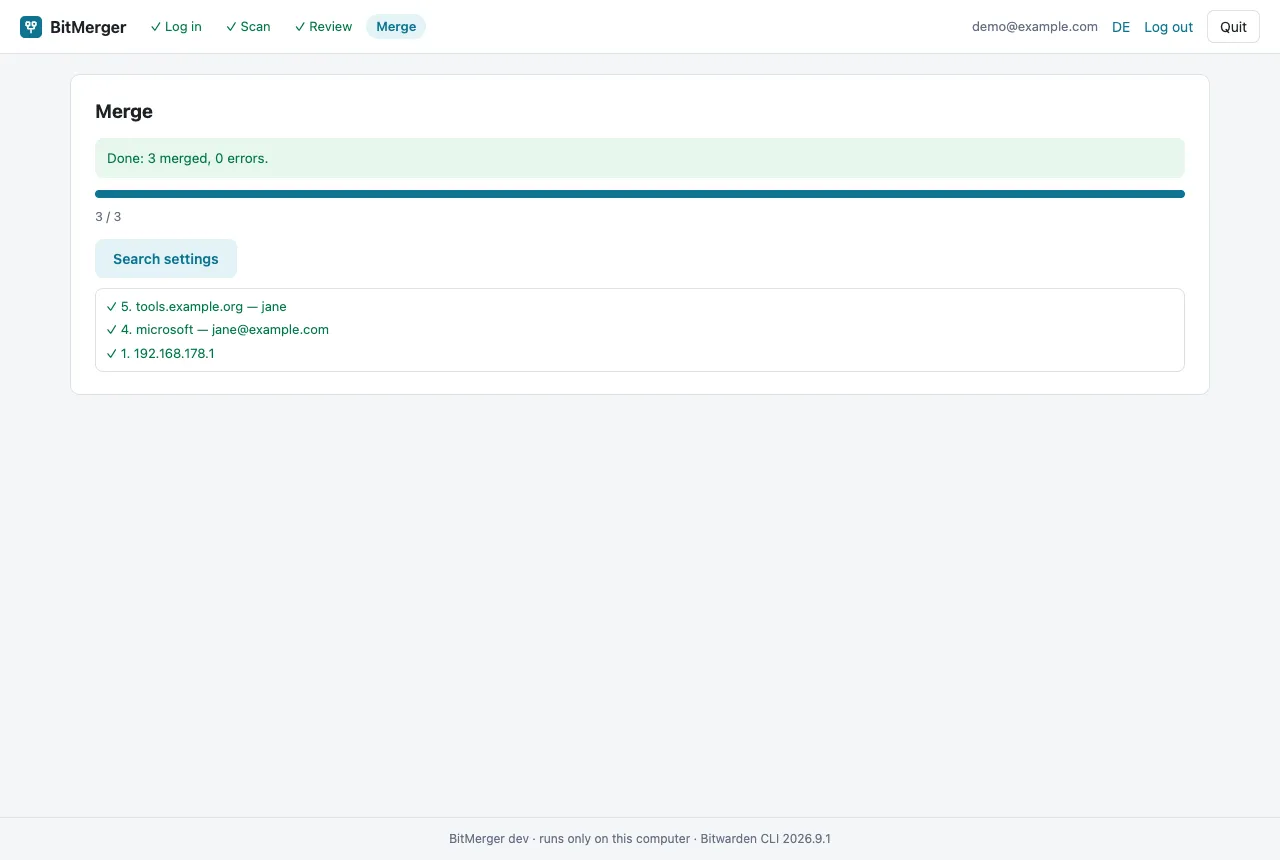
Start the merge. It runs in the background with progress. You may close the browser tab and open the link again later, but the BitMerger program itself must keep running. Quitting waits for the current group.
Afterwards
- The duplicates are in the Bitwarden trash and can be restored there for 30 days.
- Open a few merged entries in Bitwarden and check URLs, notes and password history.
- Quit BitMerger in the browser. It logs out and deletes its local copy of your entries, and it does the same after 20 minutes without browser activity.